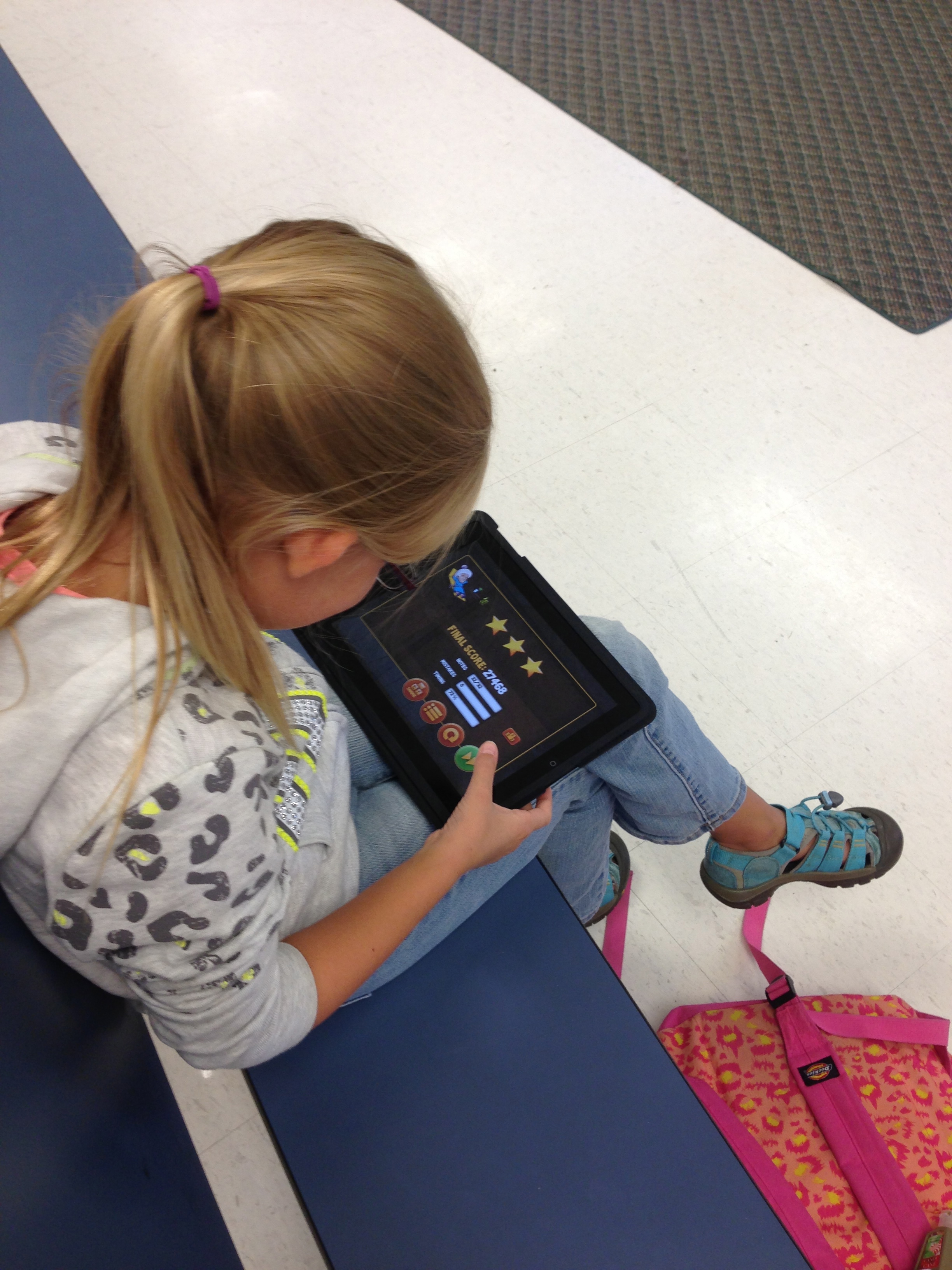
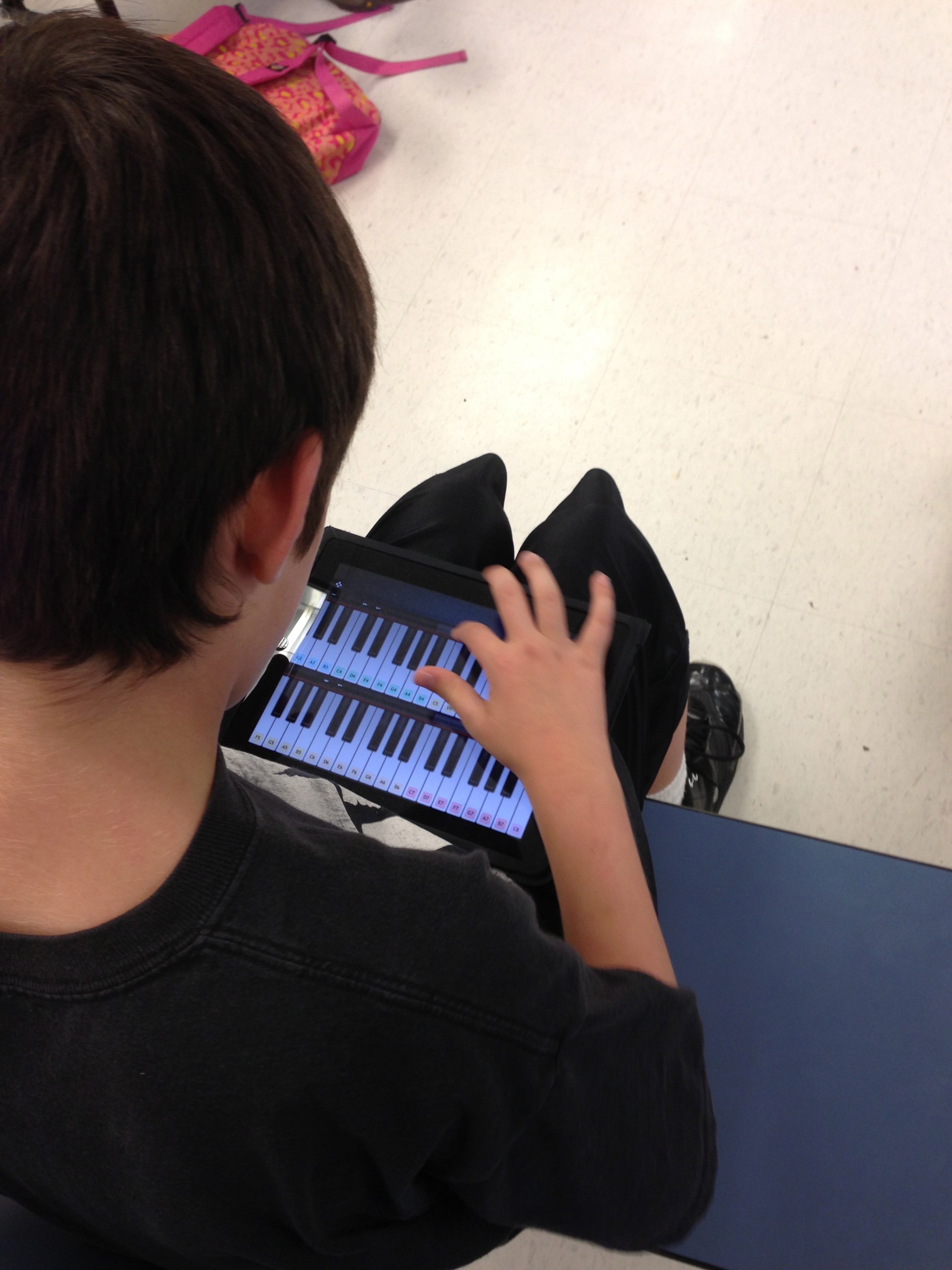
How to Quest: A Video Walkthrough

  Now that my switch to school #2 is starting to calm down. I can start to focus on how I am going to change-up and improve the rest of the year hoping to continue the good streak that I am on! I sat down and went through my curriculum trying to align it with the Quaver curric that I am using and acquired a few ideas. I’m trying to get better about posting how-to videos and walkthroughs. I’m not the greatest at recording myself but hopefully it will change with practice!

  Posted is a video I  created using Quicktime Player (my apologies for the audio troubles in the beginning, this is the first time I’ve used the Quicktime Player recording feature) showing you how I walk through a Quavermusic.com webquest with the kids. I started writing these a few years ago and write new ones occasionally. After trying out the free items Quaver had to offer I just had to get more and now I have the whole family of programs and enjoy every minute. So try out this brand new quest created just for this post, I guarantee you’re going to love it so much you’ll be hooked on Quaver for good.

Patriotic songs:

What does the word patriotic mean to you? The meaning of the word is: for the love of one’s country. Patriotic songs were written just for that purpose, to celebrate our country. We have many patriotic songs about America but how many do you know? A lot of them were written many years ago and some have started to be sadly forgotten. Follow the steps below to discover more about the tunes we use to celebrate the United States of America.

1.) Francis Scott Key wrote the words to our national anthem The Star Spangled Banner. He wrote them right after he watched a battle during the War of 1812 take place. I want you to travel back to his time in the Phonebox and click menu. Select the music player and click the Audio Drama. Now close your eyes and put yourself in Mr. Key’s shoes, does his inspiration inspire you?

2.) We consider a lot of our patriotic tunes to be marches. John Philip Sousa was considered the king of marches. Go to his stop in the Phonebox to listen to one of his most famous pieces Stars and Stripes Forever. What do you think the title means? What can you picture in your head as this song plays?

3.) Now it’s your turn to be like Sousa and Key. Go back to Francis Scott Key’s time in the Phonebox and go back to that music player. Choose Yankee Doodle and listen to the tune, can you write some words to go along with the melody of Yankee Doodle? Write it down on a nearby piece of paper and try to perform it!

Are you teaching patriotic songs in your classes? How do you teach them? Are their ways you could see yourself using this quest for your lessons?
Playing with an Apple TV

  So I am pretty excited, I have moved to school number 2 for the next quarter and have found time to actually start playing with some really cool new tech tools to use in the classroom! I cannot wait to start using them and I am very sure I will be blogging about them soon!

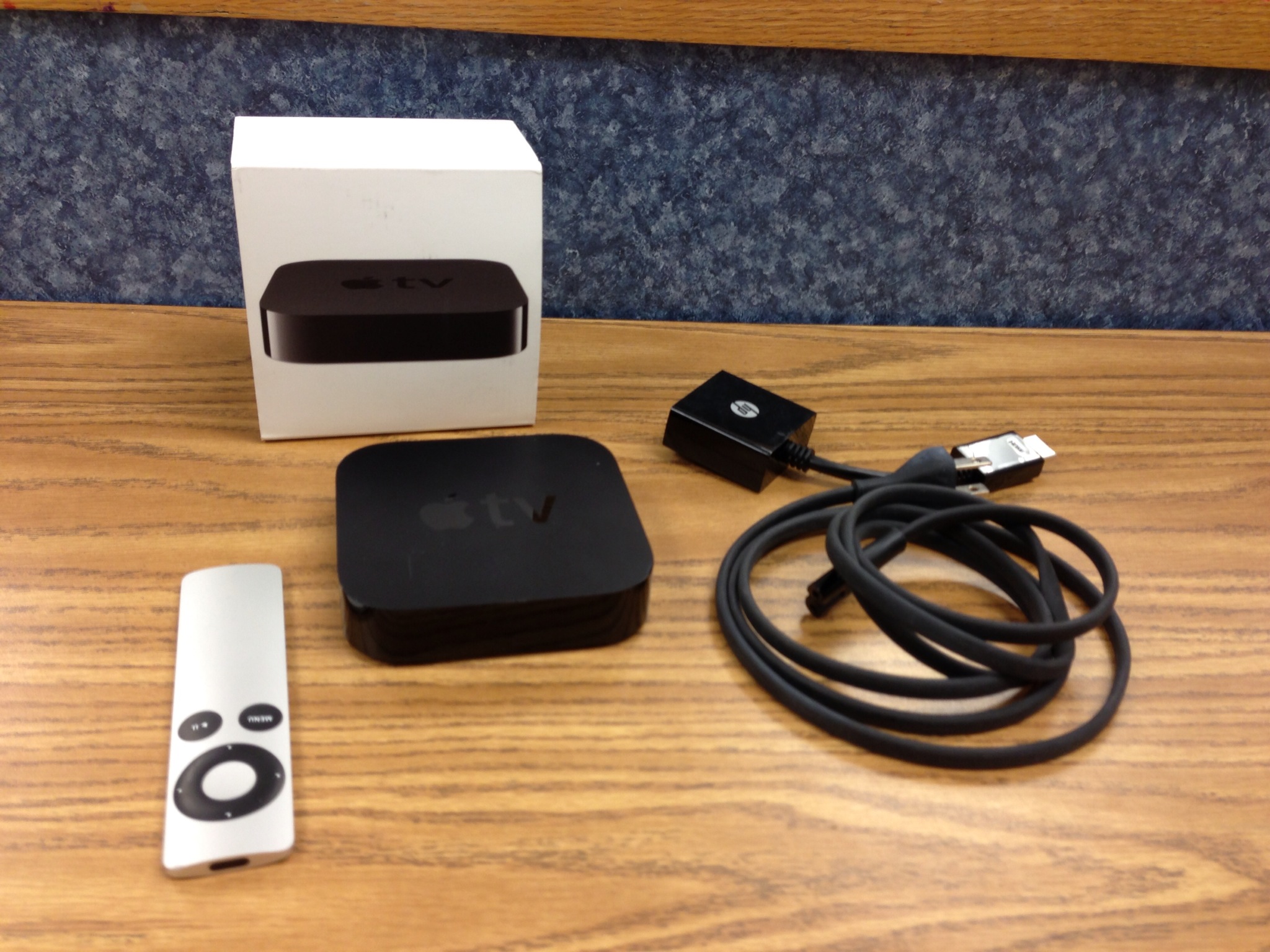
Last week I composed a blog about using Bluetooth as a way of sending music to an output devices as a way to use your device and move around and not have to stay connected to a cable at the front of the room. This week I wanted to show you how I use my Apple TV for the same purpose but instead of sending music I send visuals from my iPad that can be projected to the screen so the whole class can see. You can use new apps like Reflector to do the same sort of thing but I rely on my Apple TV because it is easy for me to connect and reliable with my wireless network set up at my school.

IMG_0005

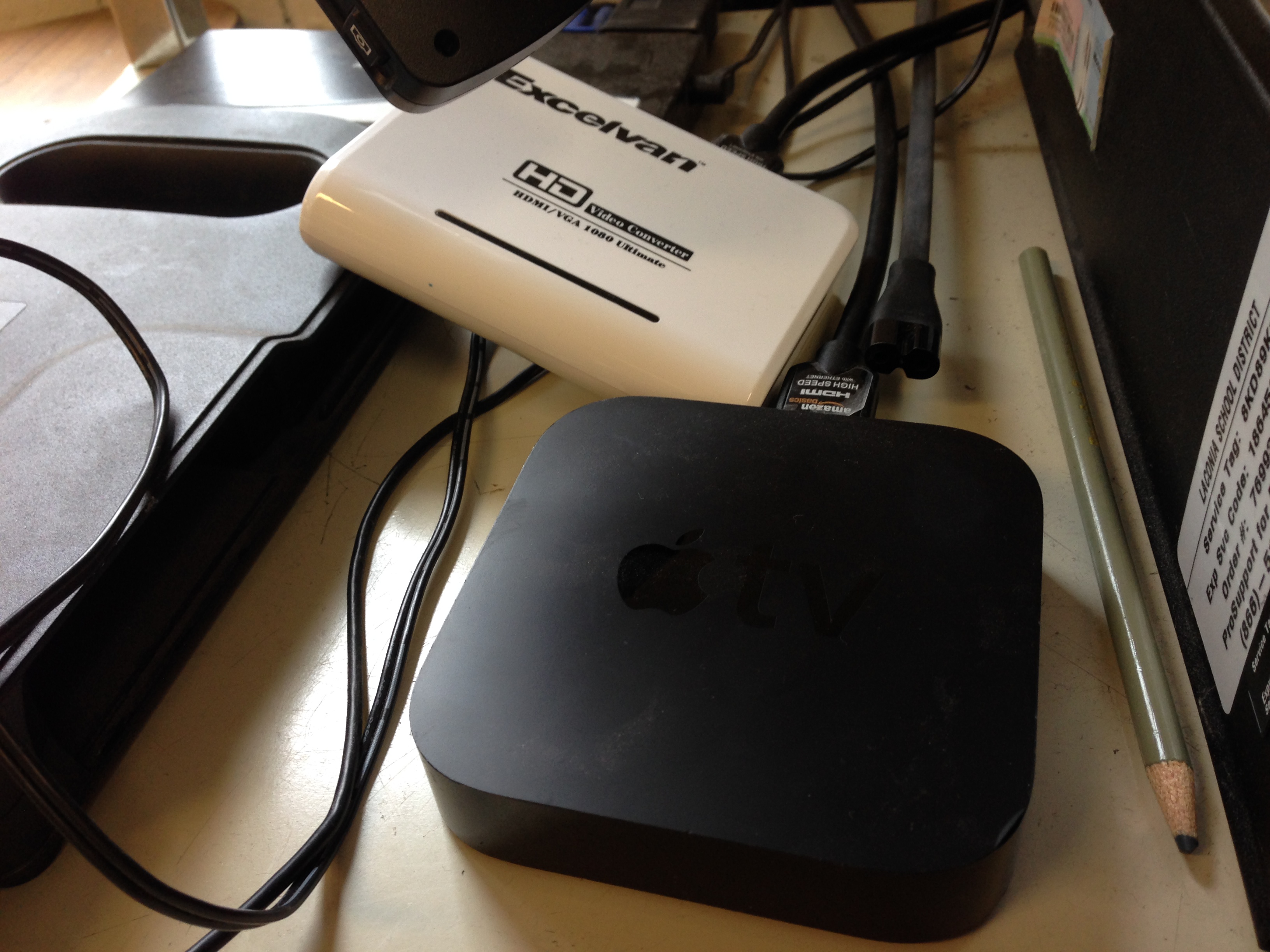
To set up your TV at school you first need to figure out, Do I have a projector that has an HDMI setup? Do I have a projector that has a VGA setup? Or am I using a TV? I have a VGA projector so I need a video converter box I bought off Amazon for about $30. This box allows my video and audio to be converted so it can play on my VGA projector.

Copy of ATV

Into that box I need to plug in the HDMI cable from the Apple TV, the power cord, the VGA cable to the projector, and the audio jack from the back of the computer. Once those are plugged in and the power cable to the Apple TV is plugged in the TV should turn on and be visible on your projector screen. After you are connected using the remote you can navigate the screen to connect your Apple ID so you can play your music, connect your Youtube ID to play your playlists, and my favorite, you can mirror your iPad to the screen using Airplay. There are two ways to turn on Airplay depending on the iOS you have running on your device;

iOS6 or earlier: Double click the home button and swipe all the way to the right to get to the Airplay menu. Touch the Airplay button and select the device you want to connect to. After hit the toggle switch to turn on mirroring and your iPad should then be visible on the screen.

iOS7 or later: Swipe using 1 finger from the bottom of your device up to reveal the tool menu. Right next to the button that is labeled “AirDrop” should be the Airplay button. Hit that button and select the device you would like to connect to  and do not forget to turn on the toggle button to turn mirroring on. After your iPad should be visible on the projector.

photo 1

photo 2

After you have connected your iPad you can now walk around the classroom and show your students exactly what you are doing on the iPad. This is great especially for classroom management. I can be teaching from the floor next to some of my favorite students and not have to stop class to keep my favorite students focused. It is also great for 1 iPad classrooms! All of the students can see and share the one using it sort of like a Smartboard Slate.

I use this tool a lot when teaching from my iPad, my students love to use Toca Boca Band, Garageband, Dolce Music Flashcards and I have all kinds of instrument apps we can use together.

This tool helps me replace a Smartboard. I do not have one in my classroom so my Apple TV is a cheaper solution!

  Do you have an Apple TV? How do you use it with your students?

How to Play Music Over Bluetooth

Another installment in my “how to” series. If you have any suggestions or need any help feel free to get in contact with me through comment on here or through this blog’s new Facebook page www.facebook.com/Celticnovelist I love new visitors!

There are so many different ways to play music tracks in your classroom now, the possibilities are endless. Most have involved plugging your music device into something, whether it be a dock or an adapter. Now though, with emerging technologies you have the option of connecting your device using bluetooth (a capability that allows music from the device to stream wirelessly to an output device. I can walk around my room with my iPod in my pocket running class and be changing songs while not tethered to the front of the room)   The only iDevices that have bluetooth capabilities are the newest nano, the iPhone, iPod touch, and any iPad 2 or newer. There are many devices you can use to transmit from your bluetooth device to an output. In my classroom I have an Apple TV that is hooked up to my projector speaker system

IMG_0005

and an Ion BlockRocker

securedownload

both are reliable and allow for me to just turn them on and connect within seconds. This also allows me to hide my iPod in my pocket so I do not have any sneaky students trying to change the song on me! To use your bluetooth first make sure your output device is turned on and ready to accept a new pairing. After you have basically two options to turn on your device. The first one will work if you have the newest iOS for devices. First turn on your device and then with one finger quickly swipe from the bottom up and a tool bar will appear:

IMG_1565

hit the button on the top right in the center to turn on your device and then swipe down. If you’ve already paired your device before with your output device then sometimes it will automatically connect. Other times you might need to go into your settings app:

securedownload

and hit the bluetooth option:

securedownload

make sure the toggle at the top is turned on and then hit the device you would like to pair with. I have three because I can connect to two different car systems and then my block rocker. Devices you have paired with before will show up in that list. If they are on and within reach then they will say connected.

Are you connected yet? I love using bluetooth in my room. I have several devices and now can use them whenever I feel like with just the push of a couple of buttons. There has been many days I’ve forgotten my iPod and used my iPad or I’ve downloaded a song on my phone but haven’t had time to send it to my school iPod. The biggest thing is the freedom to move. I cannot tell you how awesome it is to be able to walk around the room managing my classroom when needed and if I need to stop a song or change it I can do it wherever I am without diving back to grab my iPod before it turns to something else. One less stress!

Bluetooh is just one way to play music in your classroom, how do you play music in yours?

How to Create a YouTube Playlist for Class

  So I’ve been thinking of new things to incoorporate into this blog every once in a while and after recieving technical questions after my NHMEA workshop I decided I would do a little mini series on short and helpful tech tips to do all the things I describe about in this blog. (I was also inspired by the Quavermusic Blog’s monday tip series, Thanks Abby!) So over the next few weeks I will be posting helpful and technical tips on how to make technology easy and work for you so you can use it without hesitation in your classroom.

    As I’ve learned over the past few years, YouTube videos have become more and more useful when showing them in class. They are great visuals for students to actually see what you are talking about and are easy ways to get music performers into your classroom without the big bucks and all the time. What some teachers get frusterated with is the fact that they start to accrue more and more videos to show and to search through all of them for the right one becomes a big mess and wastes time especially if you are in the middle of class, that’s when the playlists come in. I have several that go with different lessons so they are easy to find and can play one right after the other. If you are interested in checking out the playlists I have created click the following to my YouTube Channel: http://www.youtube.com/user/celticnovelist/videos?view=1&flow=grid

 To Make A Playlist:

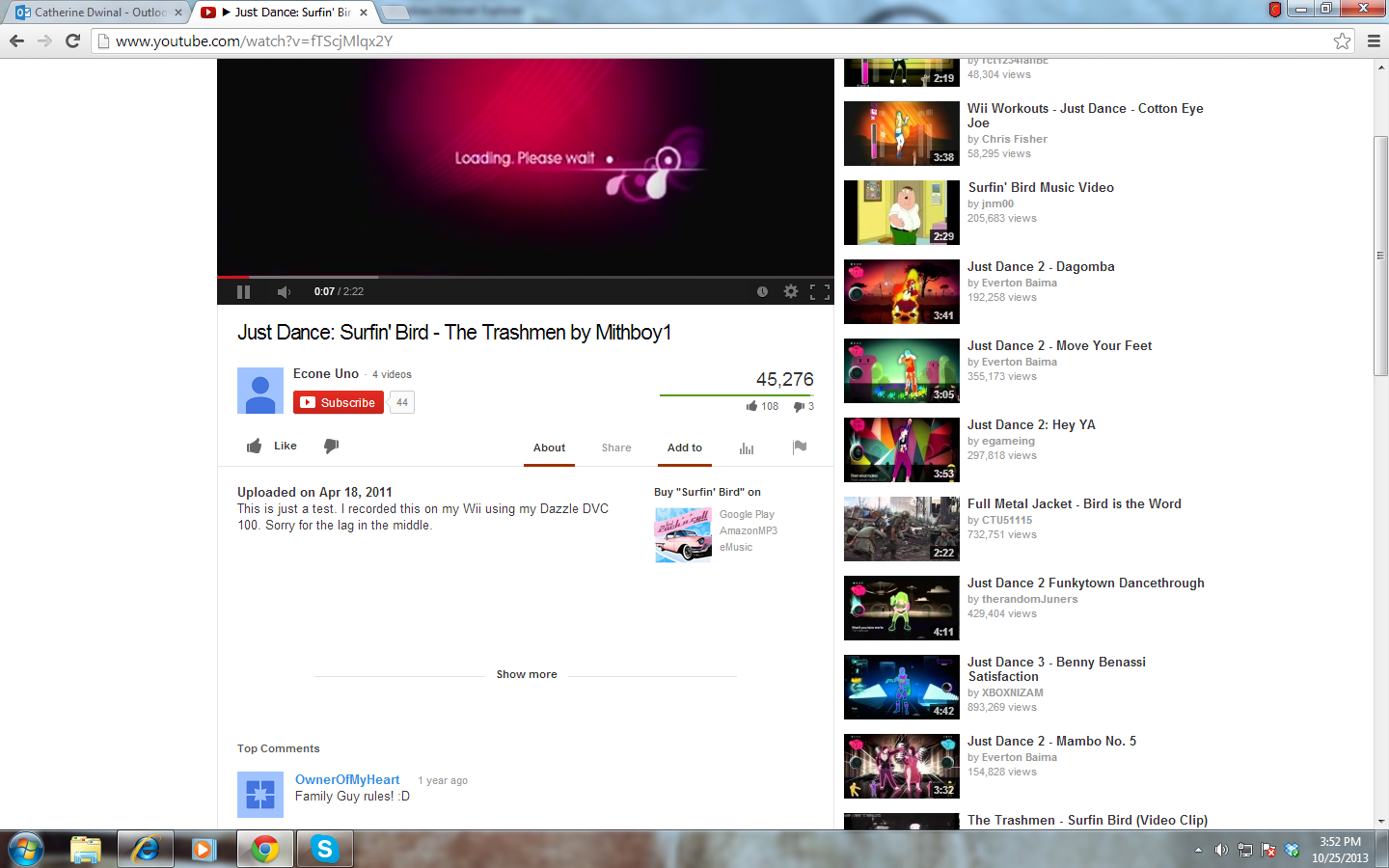
  To make a new playlist can be quite easy once you get going. First, make sure you have created a YouTube profile and find a video you would really like to save for later. I’ve used the Just Dance Surfin’ Bird video because..well..the bird REALLY IS the word. Once you get to a video you would like to save, underneath the video there are some options. Click the words Add To

1

   After you have hit add to, in the middle of the window just below the video there is now a list of playlists you have. Find the box under the list where you can type in a new playlist name. It should be right below it.

2

   Once you have found the box, type in a new name for your new playlist and decide whether you would like it a public or private list. After you have made your decisions click Create Playlist.

3

   There! You have created a playlist! Once you find another video repeat the first step and instead of creating a new playlist just select the playlist you would like in the list and it will be added. To visit your playlists or to edit them click on your profile on the upper right of the screen and a list of your playlists will come up. You can click on them there to play them but if you want to edit, click on the video manager link that is close to your profile information.

4

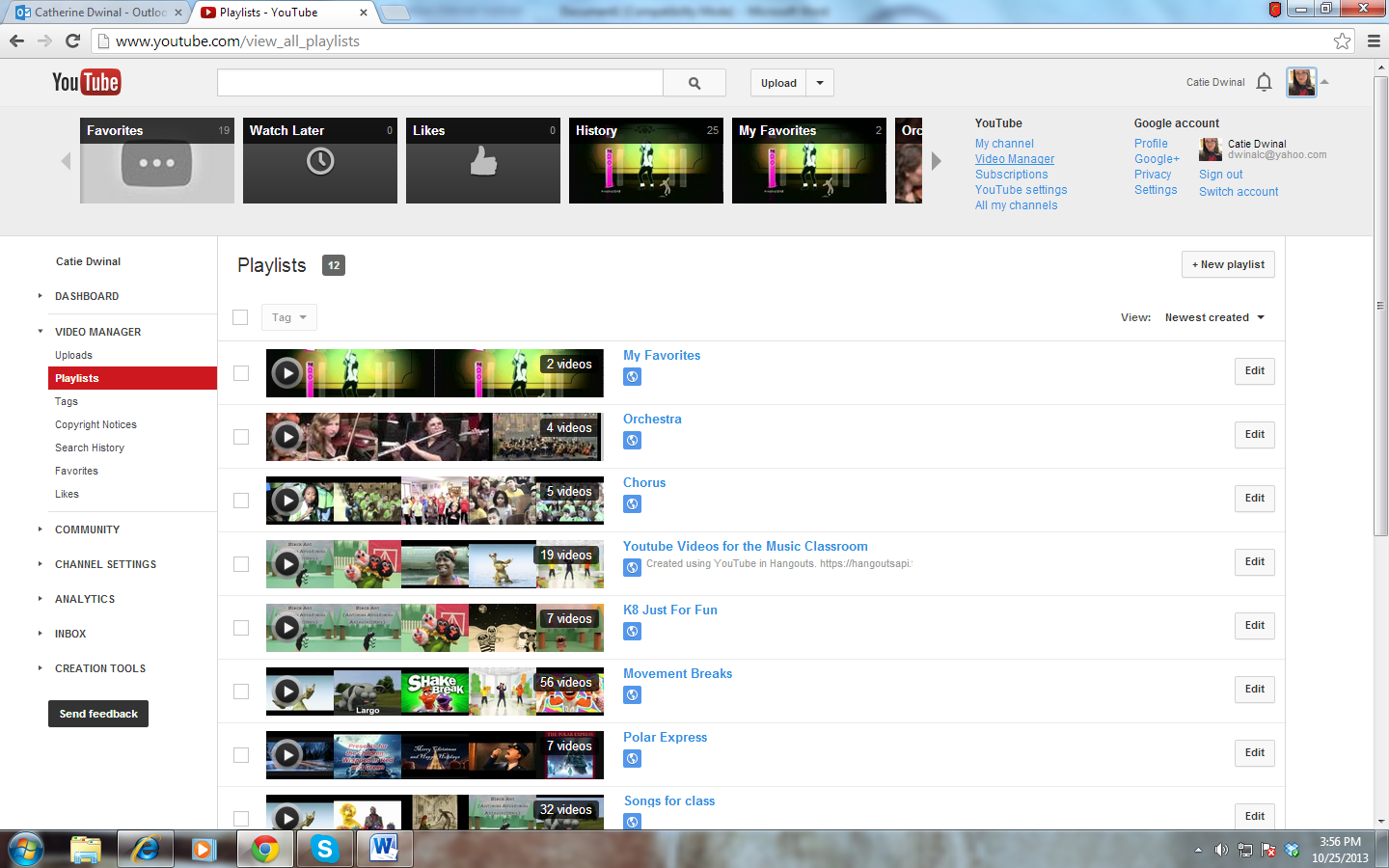
 Once in the video manager, to get you editing your playlists you need to click the Playlists link on the left hand navagation bar and that will bring you to the screen where you can delete, change descriptions or the title, or even adjust start times for each list you have.

6

   Now you are probably to the point where you have an AMAZING playlist, ready to share it? Go back and click on your profile on the upper right corner to get your lists and click on the one you would like to share. Now instead of hitting Add to again, hit Share which is right next to it and that will provide you with the link to send to others or the option to share it to the social media site of your choice.

7

That should be it! A simple way to create a YouTube playlist. I will be back next week with another walk through of another tool. Have a request or a question? Leave me a comment or like this blog’s new Facebook fanpage www.facebook.com/celticnovelist and leave me a comment there!

NHMEA Octoberfest: First Presentation of the Season

   This week has been nuts! Not only was it a short week, I also had a grade level show in the evening on Wednesday and then flipped  right around and headed to present at SNHU for NHMEA’s Octoberfest conference on Thursday and then came back to school today to teach. Next week I have two more events I’ll be attending or directing and then the week after I have a virtual call with a college class setup..whew! Is October over yet?  What I wanted to blog about this week was my experience presenting yesterday at Octoberfest, it was my first time presenting this season and first time presenting to my in-state collegues!

    Octoberfest itself is a full workshop day. We started out listening to NAfME’s wonderful President Nancy Ditmer give the keynote speech and then followed it with 2 interest sessions, lunch (I got to sit and talk with with Nancy and our NHMEA President Sandi Howard!), and then another 2 interest sessions before the all-member meeting which closed out our day. Other than presenting I attended Ms. Ditmer’s session on teacher health and avoiding burnout which was fantastic, I loved the small circle and how it was a discussion with her. I also rocked out in a world drumming session with Phil Martin and picked up some pointers for when I drum with my kiddos, and then ended with Eric Kobb talking about how he formed his iBand! I got some great tips and tools to use with my own group.

Ditmer

     I was very excited to present my session and extremely nervous. It was the very first time I would be presenting to my collegues and friends in state. I have done MMEA, I’ve done TMEA, I’ve done Christa Maculiffe, but never NHMEA. My session focused on why you should be integrating tech into your elementary music classroom, some great ways how, and a plethora of resources you can use. Including a big chunk of QuaverMusic which I was lucky to have been sent brochures for the program that went out with my handouts. It has probably been one of my best put together sessions I have done yet. I did run short on time but that was because of how invested my 35-40 participants were in the session. I had a lot of great questions and went longer because of the discussions we were having. I don’t think I have had a room yet that was so animated with laughter, oohs, ahhs, and smiles. It made me get silly and have more fun myself. Things that Iwas planning to really just skim over they wanted to see even more of (I will admit I Sid Shuffled a little http://www.youtube.com/watch?v=ycq_E6sN3CI&feature=share&list=PLoGcukJlyfnJsj9n-9u_JKFmO1c5Tz6GS). I got to talk about my favorite resources I use, why I integrate and how to do it in a way that is beneficial for students, and boast about some of my sucesses with technology  in my classroom. After I ended it was a great feeling to have so many people come up to say hi and talk. I was excited to hear so many of them say they will be in contact with me soon for help and even one person asked to come observe!. Hearing things like that is exciting. I love music and I love technology and helping music teachers like myself learn how to use it is my passion.

       I have found I love presenting and teaching music teachers how to use technology in a meaningful way, being told I am “inspiring” is such a cool feeling. I am in year two in the presenting world and really could do this all of the time if I was given the chance to. Getting up and speaking about what I know from the heart is not only an adrenaline rush but also makes me feel good and feel like I am helping others. I of course love my students and love to teach them, but teaching teachers is a whole different experience, one that I’ve found I love to do. I’m hoping my presenting schedule turns out like last year. I only signed up for two conferences in the beginning but got asked to do some and ended up with at least 5 different conferences. Right now though, I have to anxiously await for TMEA/TI:ME in February!

Would you like my session materials from NHMEA Octoberfest? Visit my websites conference page by clicking here 


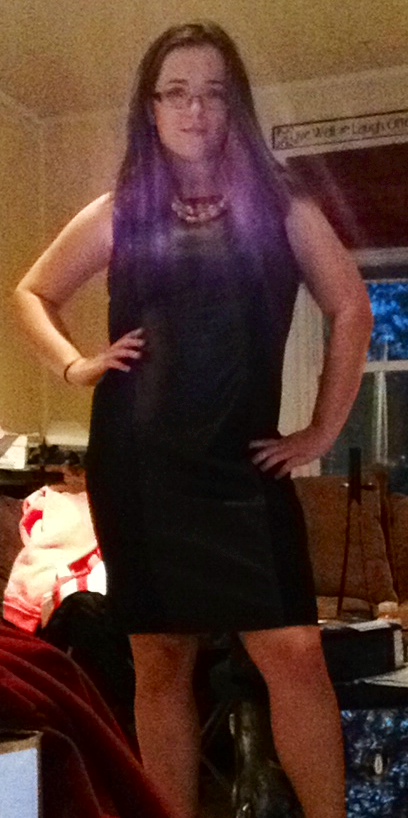
KTlittleblackdress

Of course my new presenter outfit was pretty fun to wear too 😉

A Reflection on a Skype Connected Music Classroom

Have you ever sat back and just enjoyed your hard work? Have you ever realized pushing yourself just a little bit more than what you want will bring even more joy? This week I reflected on a project that has been hard work for me this year, but now that I’ve had time to sit and enjoy it I’ve realized I’m changing the norm for music class in my district.

So far this year my class has connected with 3 classes from different parts of the world. My 4th grade has connected with England to sing a song for World Peace One Day, and 2 of my 2nd grade classes have connected with a class in New Jersey, and another class in Canada to sing songs in their upcoming show. Each connection even better than the last. To connect other parts of the world with my classroom all I need is:

  • A Computer with Skype
  • A Microphone
  • A Webcam

Thats all I need to have a lesson that can make the toughest class have the best day because they are so excited to see students in a different part of the world. To anyone it is exciting, they get to experience new and the old becomes interesting again. After one Skype call today I had a student shout out “Can we play that game they just did???” The smiles seem to last for days and the talk about it won’t end.

Venturing out into fairly new territory always comes with its challenges, in only 3 calls into this year I’ve learned ways to make my calls better:

  • Always do a test call before the actual call date, you never know if something will not work with a certain connection.
  • Make sure you write down in a calendar when you are Skyping so you don’t accidentally plan one for the same time OR plan on on a day you are headed to present at a conference!
  • When trouble arises, have extra silent work for those students who can’t be on camera to do away from the group.
  • Always invite an entire grade level to a Skype call, you never know if they will be up for joining in!
  • Make sure you share with your administration about your calls, its not every day this happens!
  • Converse with the other teacher about how you want to go about the call, there are different ways you can do it such as : A song share (Where each class sings a song for each other and asks questions), a performance (if you have a class preparing for a show, getting a different audience can be just the thing to get them to practice!), a mystery Skype (Each class tries to guess where the other class is, you could relate it to musical styles or where composers lived).
  • Prep the students before hand! They do not know how to act during a call if they have never done one before. They need to know what is going on and be prepared for anything to happen. I prepare my kids as soon as I get a call solidified.
  • Make sure you send thanks in return! Keep built bridges standing incase you would like to use them again!

IMG_1201

With 3 calls down and at least 3 more to go just this quarter with schools in Illinois, Knoxville Tennessee, and New Jersey again. I have set my sites high to 15 total calls this year with my classes. It’s a blessing I can do so many of these with my kids, and I feel even more connected to my colleagues across the world. Technology is ever changing, 10 years ago we couldn’t do this, but now its a whole different ball game. If we can connect so closely with classes so far away now, how is technology going to enhance that another 10 years from now?

IMG_1306

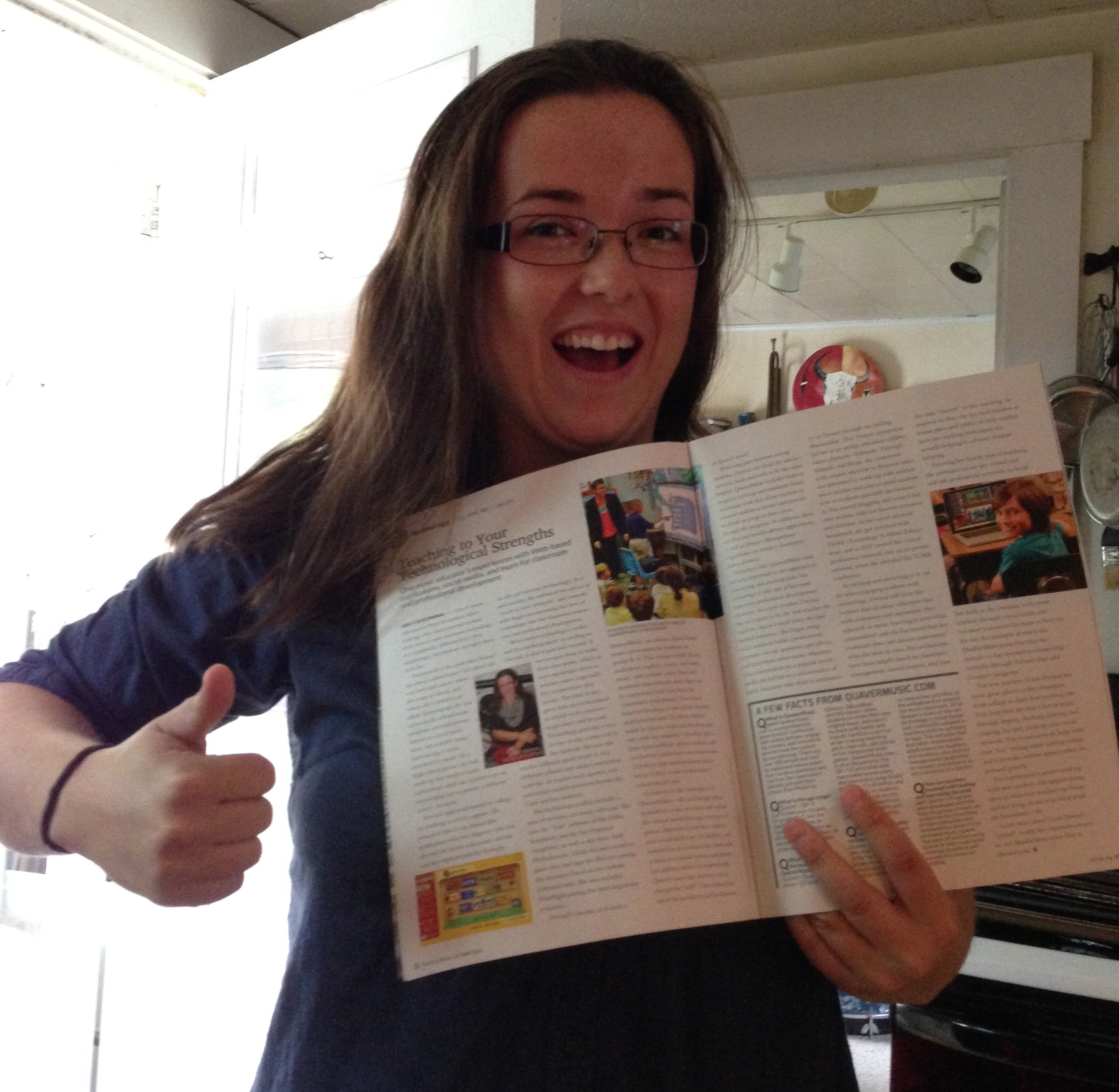
Have you checked out how else I stay a connected educator in this month’s Teaching Music Magazine published out by NAfME? Page 22!!

Starting an iPad Band, at the Elementary Level.

   I feel a little out of sorts this week, I’m off across the northern border this weekend and won’t return until Sunday which resulted in trying to think of an early post! Hope you enjoy thoughts on my new challenge!

       Lately I’ve had some smart students who realize that I have iPads that are free to use at the end of the day, every day. So they started showing up day after day and formed what I posted before “The iPad club”. After my supportive principal found out about this he came to me and said he would like an iPad band to start up. After talking with the kids, they jumped at the chance and we have a promise of a chance to perform at an assembly this year once a few songs are ready!  

I already had the students for the band, they knew my rules about the iPads and knew how to work them. All this was very lucky for me because I have never started an iPad band before, I still only have half a clue what I’m doing and my kiddos know I’m totally winging it which makes practicing together even more fun! We decided to have formal practices every Thursday in which I would get to choose the app and tell them what I would like them to do. Nothing really complex is necessary because they have to leave when their bus is called but just fun enough where they are playing instruments on the iPad and learning how to play as an ensemble.   I think being able to play as an ensemble using technology is a cool way to promote the same things groups like band and chorus do but with a different flare. The students are still focusing on the music, listening, playing and cooperating as a team, and much more just in a new and exciting way for them. Some of these kids are not in band or chorus so being able to do something like this might be their only chance to.

Some of the apps we have used are:


IMG_1194

We have had a few practices and are learning how to work together as we go. A few activities we have found that work and are fun:

  • Looping warmups: We use Beat Bots and each pick and choose a loop that will work together as a group. This gets the kids thinking about how each one fits and gets them comfortable changing loops up in the middle of a song.
  • Be the star: Taking either Toca Boca or Garageband we each get a loop going and then go around the circle taking turns doing an 8, 16, or 32 beat solo on either a virtual instrument in Garageband or sliding a character onto the star depending on which program we decided to use.
  • Instrument practice: Using Virtuoso, IamGuitar, or IamDrums we practice simple melodies and rhythms together so each student is reading music and learning an instrument.

The students in this group are so completely pumped about it. They have great incentive to practice as well, we were told we might be possibly able to play at a future assembly and were asked to video our first song so it could go up on the school webpage!

   Have you tried something out of your comfort zone yet this year?

IMG_1190

The Power of a PLN

  Wait? It’s Friday? How did this happen? I really had no idea it was Friday until I got up this morning and my mother and sister were so excited it was jeans day! Just goes to show you time flies when you are having too much fun. (Not all fun, my school schedule hates me and I can barely get anything done during the day.)  I’m hoping for more of an interesting and fun week of school next week, I like things that are out of the ordinary and make the week fly by so I can crash on the couch and not get up until Monday. By the way, anybody see the new Teaching Music Magazine for this month?? I’m in it and so excited!!

 When I first started teaching I had only my college professors, my student teaching co-ops, and my colleagues to rely on for advice and motivation through my beginning years. It was really a “lost feeling” because I could email, maybe call, but if I needed an answer asap then I was pure out of luck. Sometimes, I received advice but it couldn’t work in my situation so I had to get creative on my own. That’s when I started to seek out advice past what I knew. I wanted a bigger circle, a circle that was fit with the right people and came from all walks of life, that’s when I found the MPLN (Music Personal Learning Network). Found on Twitter, Facebook, and even Google Plus the MPLN is the ultimate group of thousands of music educators who have banded together in order to support each other and stand up for music in our schools. I have been apart of this great group for so long many of them have become dear friends and the best mentors as I continue my 4th year of teaching.

  The MPLN over the years has:

  • provided almost instant support and feedback on problems I encounter and help guide me through and motivate me to be positive and keep my big mouth quiet when I need to.
  • been an amazing critic to my harebrained ideas, I can get quite crazy with my thinking and my PLN friends help me think through it.
  • given me someone to talk to during my lonely days hiding in my music classroom cave unable to leave because of my schedule.
  • given me creative ideas for amazing projects.
  • let me share what I do, and feel humbled and blessed by so many positive comments about my work.
  • given me opportunities not many other educators receive, especially with presenting at a national level at such a young age.
  • finally given me a strong passion for something that I want to spend the rest of my life doing.
  • made me laugh and smile.
  • shown people here at home that I am more, and I can stand tall.
  • finally, given me a platform for a strong voice for music education and music technology. I am still years away from hitting 30 and because of my PLN I have met amazing people. presented on a national level, have started to collaborate with top-notch companies like Joytunes and Quaver Music, and most of all, been able to speak up and actually be heard. I’ve spent years of my life not having that, having a PLN has given me confidence to say what I need to say and be confident in it.

     Don’t have a PLN yet? What’s your excuse?

Follow me on Twitter at: @musiccargirl14 and start following the #mused and #musedchat hashtags

Search for the Music Teachers Facebook group and join in the conversations with thousands of other members

Or head on over to Google Plus and request to join the Music Education Community! https://plus.google.com/u/0/communities/102610005911356159206

cropped-kokopelli61.jpg

 Start in the conversations and band together with all of us!

Keeping Up with the Passwords

  This week has been nuts. With so many things to do I didn’t even realize it was Friday until today when my students in 4th grade had an amazing time talking to the William Howard School in England for a Skype call. They did fantastic and I was proud to show off my tech skills. A majority of this week I have held our netbook cart hostage for my older grades so they can get acquainted or re-acquainted to www.quavermusic.com so we will be all set for future projects and webquests.

 With so many laws out there for children on the internet, many websites require individual login information that is unique to each student. Now this would be much easier for a class of 15-20 students only, but being a music teacher finding time to organize 600 student usernames and passwords proves to be much of a challenge. This week I had over 160 successful logins to the Quaver kids portion of the website using a few tricks. I now have all of my 3rd-5th graders all set and use to logging in for future projects.

  One trick is always to have the right tools.  With index card boxes purchase from Staples I have halved index cards each student and they are responsible for writing their information down with their name and class. The index cards look like this: 

blogcard

    I have pencils and require each student to write down one card to leave here with me just incase they have trouble logging in next time so I can help them. With email at home a tricky subject in my poverty-low income school area it is hard to do password recovery through email and that is sometimes the only recovery system most websites have. I tell my students “I don’t have a magic reset your password button, you need to be responsible for leaving me your information so I can help you.” Students are allowed to write out another copy of their information to take home. Especially with a site like www.quavermusic.com my students who have computers at home love to take a copy of their account info home with them so they can play Quaver anywhere.

   I have each class set of cards bound and separated by tabs. Each class has their own set of cards that I use a paperclip to bind them together and then as I put them into the index card case I separate each class by tab for easy and quick access for later. When I need them I take the class set out and place them on a desk for students who need their information to come up and grab their card. We always talk about how it is not nice to sign into someone elses account and that all cards need to be returned at the end of each class. I have yet to have a problem with hacking or lost cards.

   When setting up accounts a lot of students have trouble getting creative with usernames and passwords. I always tell them:

  • There are NO spaces in a user name or password
  • Get creative with your username! Somebody already has “butterfly” or “football”. When stumped just use your favorite animal and number!
  • If you have trouble remembering your username or password make them the same!

   Remember to always be diligent when a class is logging in as well, a lot of students will have issues regardless of how much prep you have done or how organized, patience with them is a virtue!

blogcardbox

My card box all filled and organized!

How do you help your students log in  so they can create music?      

A Forgotten Quaver Webquest: Finding Debussy, Beethoven, and Vivaldi


  So I will admit, I forgot about this one too. I’ve maybe used it once and posted it over a year ago in my Anatomy of a Webquest blog. It’s been a Quavertastic week. With the rain and state testing and everything else the kids have been NUTS but I mention Quaver and they sit down and get ready for some fun OR I give them a vote for the end of class activity and ALL of them request a Quaver episode or ClassPlay song!  I had to wear a Quaver shirt today just because this whole week has been all about him! Next week they are getting their Quaver accounts set up so I was looking to write a cool webquest just for them but stumbled across this gem that I don’t think I really ever shared by itself. It’s been dusted off, cleaned up, and reworked in a fun quest about those 3 funny guys in the shop! Enjoy!

      Debussy, Vivaldi, and Beethoven decided to throw a party while the shop was closed last night, those rascals! Now they have disappeared from their posts and are hiding some where in Quaver’s world. Can you help find them? Let’s use clues about each of their lives to catch those 3!

1.) Debussy‘s piano teacher thought he was a genius when it came to playing piano, while in school he failed many piano tests but when he switched his focus, Debussy found he excelled at composition. Where would Debussy be hiding where he could compose at the piano? When you find it help him write 2 measures only in the treble clef staff to start off his next masterpiece!
2.) Vivaldi is quite a character, his personality most certainly reflected in his music with so much contrast . Where can you go to learn more about him and his music? He must be hiding back in his own time! Find him and read more about his wacky personality in his book! After you are finished, try to answer the questions at the end of the beginner or advanced book to recieve the Debussy diploma!
3.) We all know Beethoven lost his hearing when he got older, the shop has had some magical stuff going on lately and he has gotten his hearing back! My hunch is he is trying to retrain those ears. Where will you find him? Go there and play the pitch or interval game with Beethoven to help him get his ears in tip top shape again!
4.) Wow, you found all three of our friendly composers! They are all back into their rightful places. Using what you’ve learned about them, can you go into QSkits and create a skit where they talk about their lives? Add in costumes and make it funny! After you are done be sure to check your student tab and pass this in as your QSkits assignment! We will put on a show once everyone is done!


0

Let me know what you think!